Domains
 Register Domain
 Transfer Domain
 Hosting
 Web Hosting
 AI Web Hosting
 Wordpress Hosting
 SEO Tools
 Knowledgebase
 Products
 Website Security
 Website Security
 About Company
 Refund Policy
 Privacy Policy
 Terms And Conditions
 Support
 Open Ticket
 Contact Us
 News
News
How to Use AccelerateWP With WordPress Without Breaking Your Site
AccelerateWP is a WordPress performance tool that helps speed up your site without making you tweak every setting by hand. For site owners, that means faster pages, a better visitor experience, and less guesswork.
If your WordPress site feels slow, this tool can act like a mechanic for page speed. It spots common slowdowns, applies safe fixes, and gives you room to test before going further. Let’s start with the setup steps that make the rest much easier.
Get your WordPress site ready before you turn on AccelerateWP
Before you enable anything, make sure your WordPress site is healthy. You’ll need admin access, a working site, and a host that supports AccelerateWP. It currently works with WordPress only, and hosts may expose it through cPanel, Plesk, or the WordPress admin area.
First, update WordPress, your theme, and active plugins. Old code often causes speed issues, but it also creates conflicts when you add optimization tools. Next, create a full backup so you can roll back fast if something looks off.

A clean starting point saves time later. If your site already has caching, minify, lazy load, or image tools active, write them down before you turn on AccelerateWP.
Check updates, backups, and plugin conflicts first
Some performance plugins overlap. That’s where trouble starts. If two tools both try to cache pages or defer scripts, your site can load like a car with two drivers fighting over the wheel.
Pay close attention to caching plugins, image compression plugins, and script optimization tools. Also, if you use WP Rocket, don’t run it with AccelerateWP, because they aren’t compatible. Heavy page builders are not always a problem, but they do need extra testing after each change.
The safest approach is simple: update first, back up second, then remove or disable overlapping speed tools before testing AccelerateWP.
How to set up AccelerateWP with WordPress step by step
Once your site is ready, find the AccelerateWP WordPress optimization tool in your hosting panel or inside WordPress if your host has enabled Smart Advice. You may see a list of recommendations, or you may start by turning on core features manually.
Begin with the basic setup. Activate the main AccelerateWP feature, then review what’s available for caching, website optimization, and content optimization. You do not need to switch on every option at once. In most cases, the default or recommended settings are the right place to start.
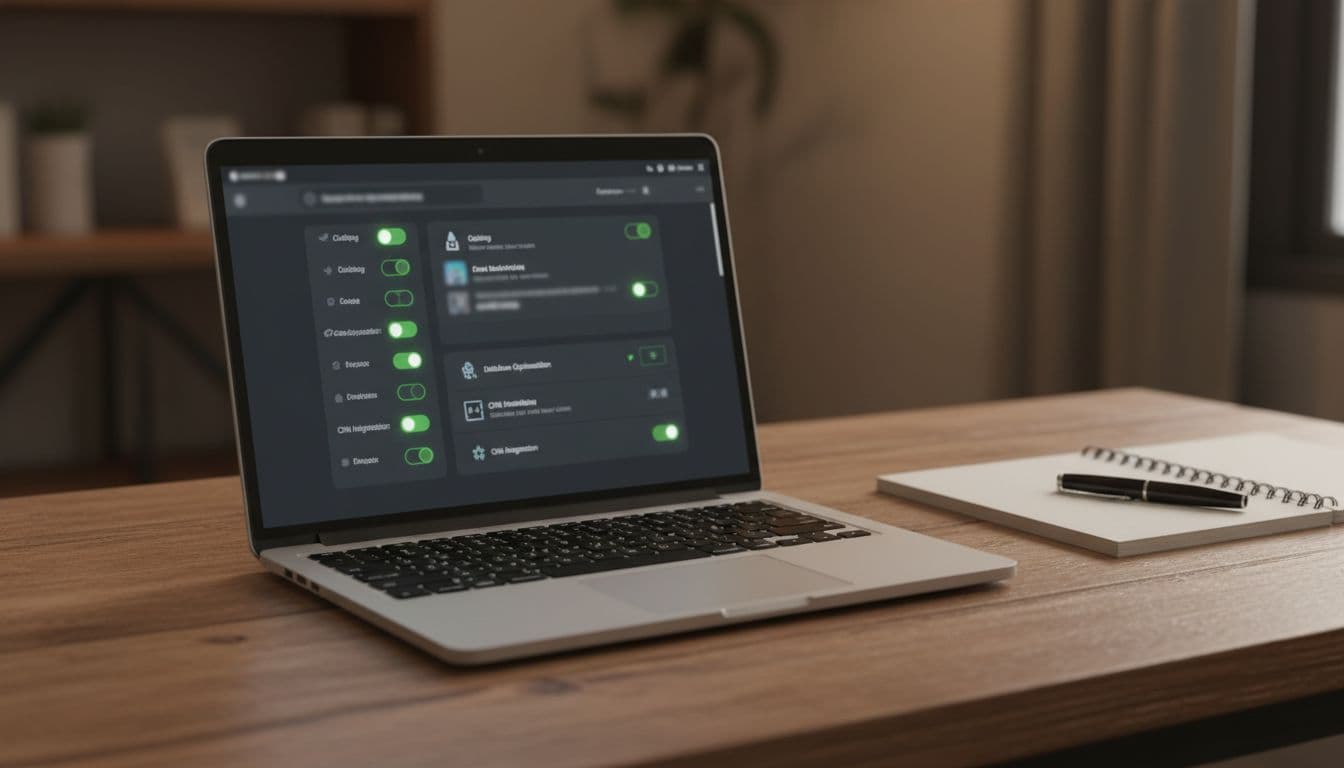
If advice appears, apply one recommendation and test the site. If you’re enabling features yourself, start with page caching and browser caching. Those usually give strong gains with low risk. After that, move to options like lazy loading, database cleanup, or JavaScript changes.
Turn on the main performance features in the right order
Start with the safest features first. For most WordPress sites, that means static caching, browser caching, and basic optimization. These usually improve speed without changing how the front end behaves.
Then test the site before enabling more aggressive settings. One change at a time makes problems easier to spot. If a layout breaks after you defer JavaScript, you’ll know what caused it.
Clear cache and test key pages after each change
After every change, clear the cache and load real pages. Check your home page, a blog post, contact form, landing page, and any custom page templates. If you run WooCommerce, also test product pages, cart, and checkout.
Don’t stop at desktop. Open the site on mobile too. Watch for missing sliders, broken menus, delayed images, or scripts that only load after a click.
Use the best AccelerateWP settings for speed without breaking your site
There isn’t one perfect setup for every WordPress site. A blog, store, membership site, and portfolio all behave differently. Your theme, plugins, traffic, and hosting stack all shape what works best.
That’s why safe tuning matters more than chasing a perfect speed score. Use the features that match your site’s bottlenecks, then keep what helps and roll back what doesn’t.
When to use image, CSS, and JavaScript optimization
Image optimization is often the easiest win. Large images slow pages down, so compression and modern formats can cut load time fast. Lazy loading helps too, because images load only when visitors scroll near them.
CSS optimization can reduce render delays, but aggressive settings may affect layout. If fonts jump or styling loads late, dial it back. JavaScript optimization can also help, especially deferred or delayed loading, but it may break menus, popups, or form tools.
So, don’t turn on every switch because it sounds smart. Test each feature the same way you’d test a plugin update, slowly and with real pages.
How to handle WooCommerce, membership, and dynamic pages
Dynamic pages need extra care because they change by user or session. Cart pages, checkout, account pages, dashboards, and member content should not always be cached like a normal blog post.
If something looks wrong, exclude those pages from caching or optimization. Then test while logged in and while logged out. Also confirm that prices, cart contents, account details, and member-only content stay accurate.
Some setups can use user-specific caching, but you still need to verify behavior on live pages. Speed is helpful, but not if the wrong person sees the wrong content.
How to check if AccelerateWP is really improving WordPress performance
Don’t rely on guesswork. Compare page speed before and after each major change. Use your real pages, not only the home page, because blogs, store pages, and forms often behave differently.

Keep notes as you go. If a feature improves speed but breaks a form, it’s not a win. The goal is a faster WordPress site that still works as expected.
Track speed, Core Web Vitals, and real user experience
Look at load time, Largest Contentful Paint, and how responsive the site feels when you click around. You don’t need perfect numbers. You need steady gains and stable pages.
Also pay attention to bounce rate, checkout flow, and mobile behavior. If visitors can move through the site faster, that matters more than chasing a green score everywhere.
A faster WordPress site starts with careful setup
AccelerateWP can make WordPress faster, but the best results come from a calm, step-by-step setup. Start with safe features, test after each change, and keep dynamic pages under close watch.
That simple process does more than speed up pages. It helps you build a WordPress site that feels quick, stable, and easier to manage.
If your site has been dragging, now’s a good time to make the first change and measure what improves.