
 Domains
 Register Domain
 Transfer Domain
 Hosting
 Web Hosting
 AI Web Hosting
 Wordpress Hosting
 SEO Tools
 Knowledgebase
 Products
 Website Security
 Website Security
 About Company
 Refund Policy
 Privacy Policy
 Terms And Conditions
 Support
 Open Ticket
 Contact Us
 News
News

How to Set Up 301 Permanent Redirects in .htaccess
A 301 redirect sends visitors and search engines from an old URL to a new one. It’s the fix for moved pages, full site moves, forced domain versions, and old broken links. This guide is for Apache hosting that uses .htaccess, which is common on cPanel-based plans.
Know when .htaccess is the right way to set up a 301 redirect
This method works when your site runs on Apache and mod_rewrite is enabled. That’s common with shared hosting and many business hosting accounts in the US. If your server uses Nginx, you need a server config rule instead, not a .htaccess edit.
In other words, .htaccess is the right place only when Apache reads that file for your site.
What you need before you make changes
Start with access to File Manager or FTP, plus a backup of the current .htaccess file. You also need the exact old URL and new URL.
That backup matters because one typo can break redirects or even stop pages from loading. Save first, edit second.
How to create a 301 redirect in .htaccess, step by step
Open your site’s root folder, usually public_html or the main web directory for the domain. Then find .htaccess. If it isn’t there, create a new plain text file with that exact name.
Add your redirect rule on a new line, save the file, and reload the old URL in your browser. If you want extra examples, this guide to common .htaccess redirect use cases shows the patterns people use most.
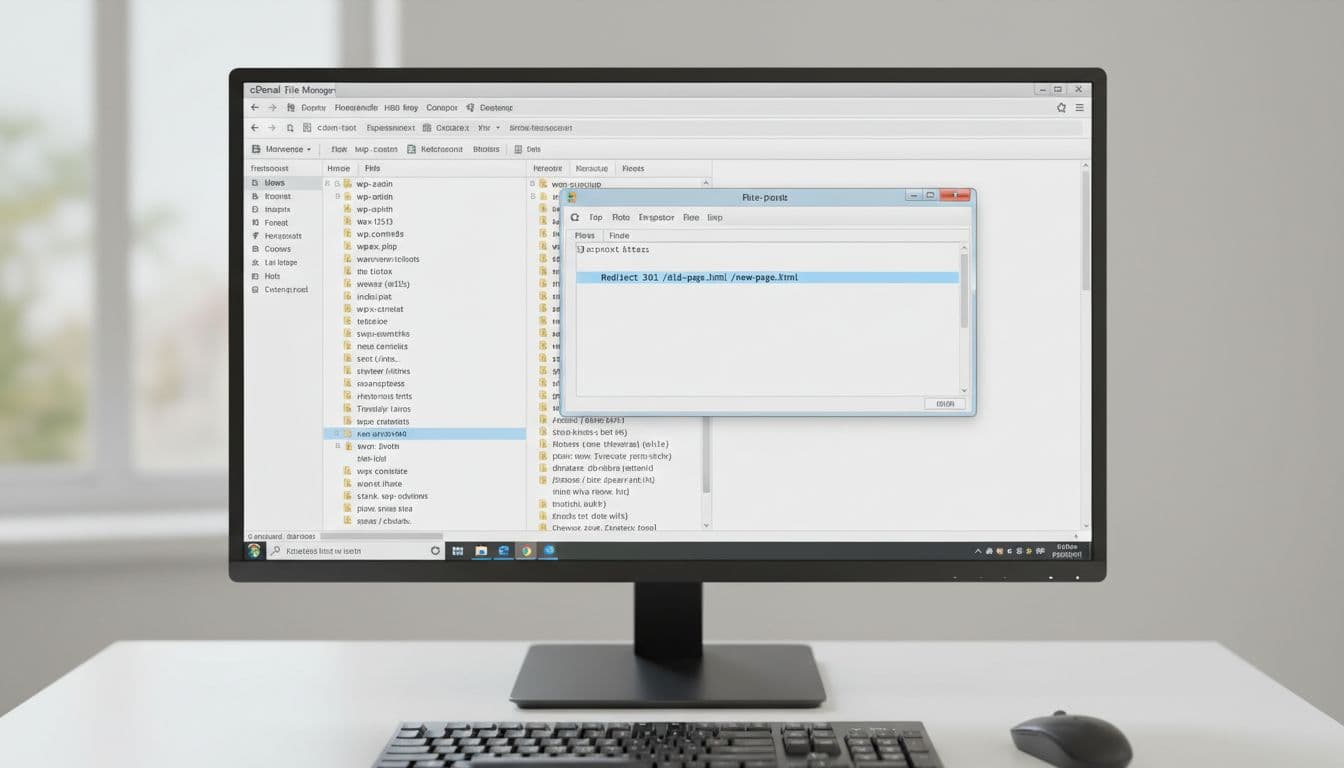
Use a simple redirect for one old page
For a single page move, use:
Redirect 301 /old-page https://yourdomain.com/new-page
Here, 301 means permanent. /old-page is the old path. The full URL at the end is the new destination. Keep the path exact, or the rule won’t match.
Redirect a whole domain or force one site version
For domain-wide moves, HTTP to HTTPS, or non-www to www, use rewrite rules instead of the simple Redirect line. These rules give you more control.
Pick one preferred version of your site and stick with it. Otherwise, you can create duplicate paths, mixed signals, or a redirect loop.
Keep redirects simple. One clean hop is better than a chain of two or three.
Test your redirect and fix common mistakes fast
After saving the file, don’t assume it’s fine. Test it right away.

How to check that the 301 redirect works
Open a private browser window and visit the old URL. It should land on the right new URL right away. Also check that you don’t have a chain or loop. If you want a quick outside check, use a 301 redirect checker.
Problems that break redirects most often
Most failures come from the wrong file location, bad slash patterns, loops, typos in the target URL, or conflicts with existing WordPress and HTTPS rules. If the site stops loading after your edit, undo the last change and test again.
A 301 redirect helps users and search engines reach the right page after a URL change. Back up .htaccess, keep each rule clear, and test every edit. Small changes in this file can act like a road sign, or a roadblock.
Leave a Reply