
cPanel Web Hosting: Why It’s Still the Easiest Control Panel to Use
If you’ve ever tried managing a website from the command line, you know it can feel like fixing a car with a blindfold on. cPanel web hosting keeps things simple. It’s a web-based control panel that helps you manage your site, email, domains, and security.
It’s great for beginners who want clicks instead of terminal commands, and for site owners who still want real control. Below, you’ll see what cPanel does best, what to watch for in a hosting plan, and a quick setup flow that avoids the usual headaches.
What you can do inside cPanel in a few clicks
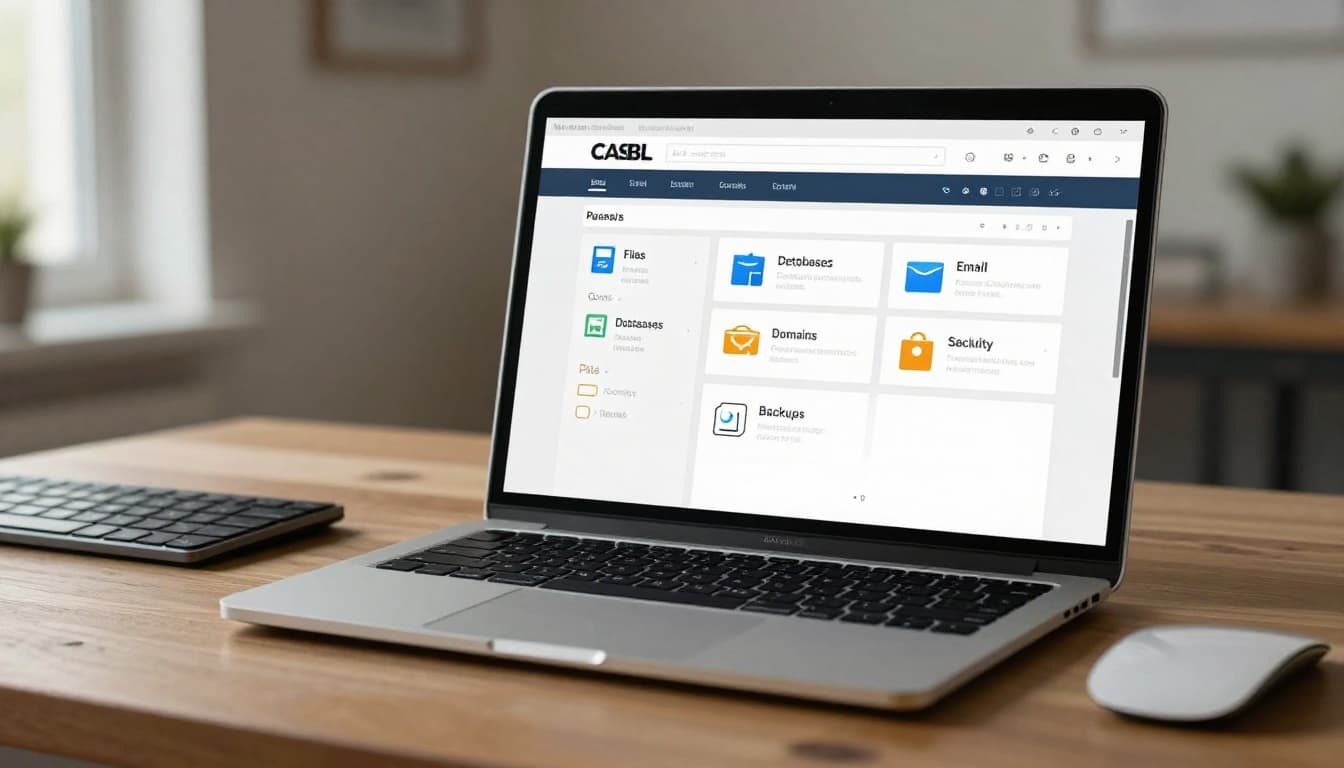 An example of a clean, icon-based hosting dashboard, created with AI.
Most people use cPanel for the same real-world jobs: upload or fix site files, create email inboxes, connect domains, and turn on SSL. Instead of hunting through support tickets, you can open File Manager to edit a broken page, use a WordPress installer to get online in minutes, and generate backups before you touch anything risky.
When you need deeper details on specific tools, the official cPanel documentation is the fastest way to confirm what a button actually does.
Website basics: files, WordPress installs, and databases
File Manager lets you move, edit, and set permissions on files in your browser. FTP does the same job through an app, and it can feel faster for bulk uploads. One-click WordPress installs (often via Softaculous) handle database setup and config files for you.
A MySQL database is where your site stores posts, users, and settings. Quick tip: update themes and plugins regularly, because old code is a common break-in path.
Email, domains, and security tools you’ll actually use
Set up email accounts, forwarders, and spam filters right inside cPanel. On the domain side, you’ll add subdomains, attach add-on domains, and make basic DNS edits when you switch providers.
Security is mostly routine: enable free SSL (often Let’s Encrypt via AutoSSL), switch PHP versions if a plugin needs it, and run a backup before big changes.
If you only do one thing today, turn on SSL and confirm backups are working.
How to pick the right cPanel hosting plan without overpaying
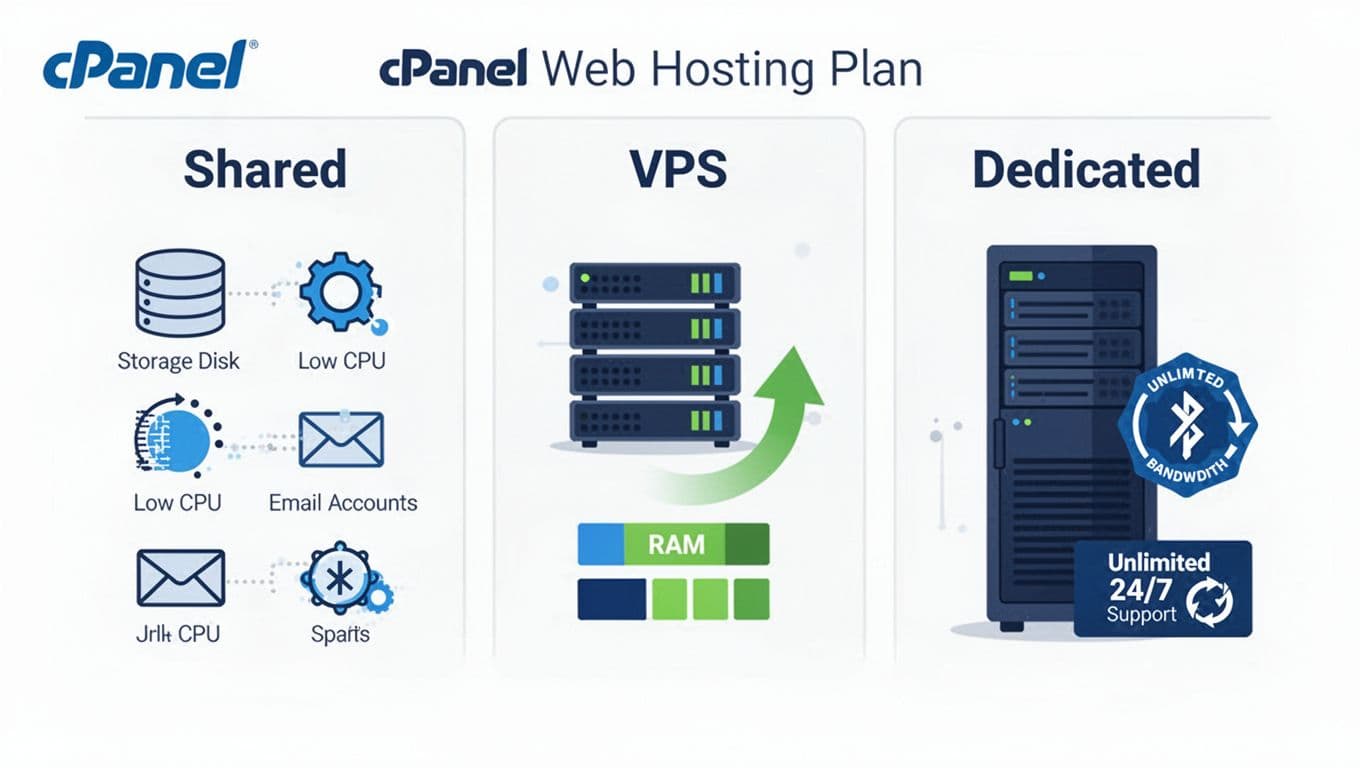 Common hosting plan types side by side, created with AI.
Shared hosting is fine for a new blog or small business site, but you share CPU and RAM with others. A VPS gives you set resources, so traffic spikes hurt less. Dedicated servers fit high-traffic sites or stores that need full control.
If you manage many sites, reseller hosting plus WHM can be worth it. Also, compare the renewal price, not just the intro deal, because cPanel is licensed software and that cost can show up later. As of February 2026, cPanel version 134 is an LTS release, so hosts that stay current should feel more stable over time.
The must-have features to check before you buy
- Backups (daily or weekly) with easy restores
- SSL setup that’s truly one-click
- Malware scanning options (even if paid)
- Email limits that match your use
- One-click installs for WordPress
- Clear resource limits (CPU, RAM, entry processes)
- Support quality and an easy migration path
Set up your site fast, then avoid the most common cPanel headaches
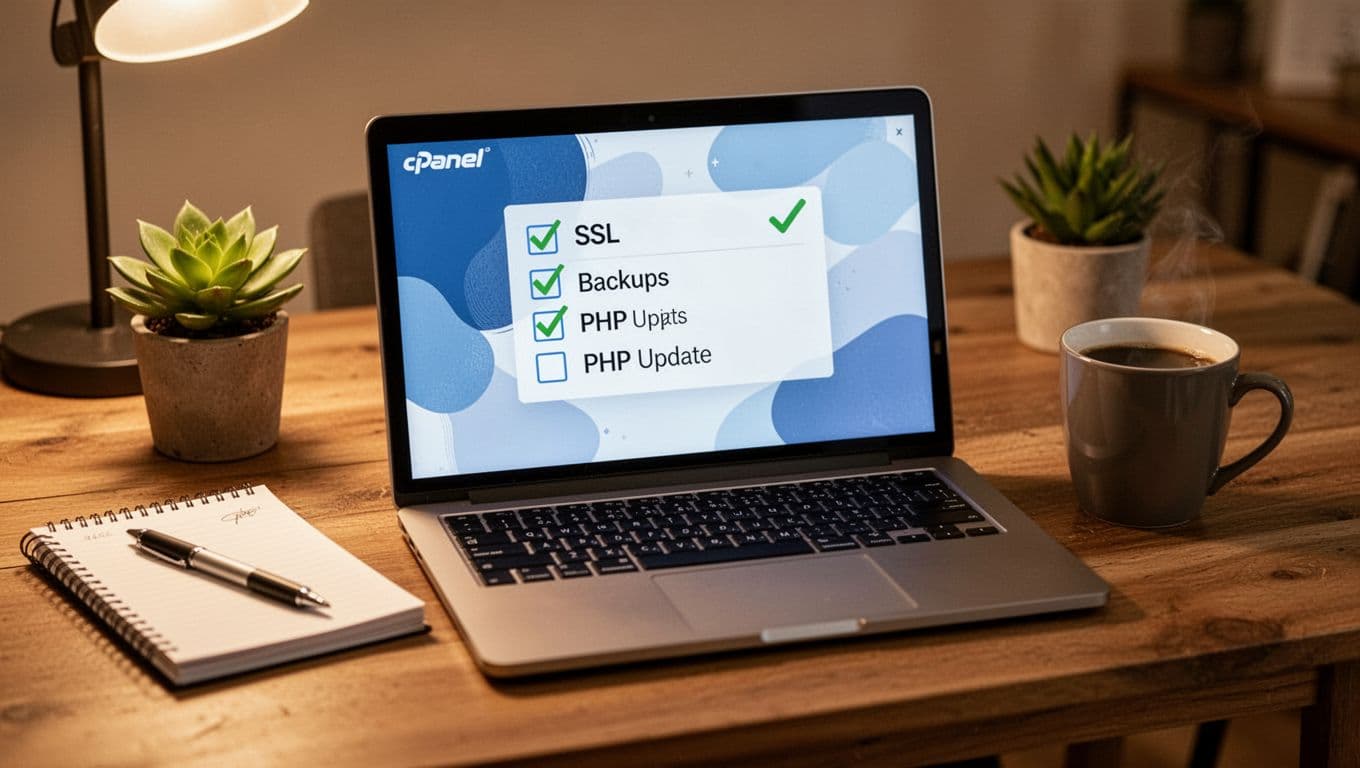 A simple first-day setup vibe, created with AI.
Start simple: log in, change your password, point your domain to the host’s nameservers, then install WordPress. Next, force HTTPS, create your main email address, and run your first full backup.
The common issues are predictable. Shared plans can hit resource limits, older PHP can break plugins, SSL might not issue right away, and DNS changes take time to spread. Some 2026 hosting dashboards add AI help for basic troubleshooting, but logs and support still win when things get weird.
A simple first-day checklist for new accounts
- Enable SSL and force HTTPS
- Turn on scheduled backups
- Update PHP if your site needs it
- Delete default files you won’t use
- Set strong passwords everywhere
- Test email sending and receiving
Quick fixes for slow sites, SSL errors, and DNS confusion
Check resource usage first, then add caching in WordPress. If SSL fails, re-run AutoSSL and confirm the domain points to the right server. For DNS confusion, verify nameservers, then wait, because propagation can take hours.
Conclusion
cPanel is still the go-to choice for most Linux hosting because it’s familiar, powerful, and easy to manage without guessing. Alternatives like Plesk, DirectAdmin, and custom panels can fit specific stacks or budgets, but cPanel remains the comfortable default. Pick the plan type that fits your traffic, confirm backups and renewal pricing, then follow the first-day checklist so you start clean and stay stable.