
Editing a WordPress Site Without Breaking Anything
Ever hover over the Update button and worry one wrong click will wreck your homepage? You’re not alone. Editing a WordPress site is usually simple once you follow a safe routine.
Most people edit in one of two places: the built-in Block Editor (Gutenberg), or a page builder your theme or plugin adds. The steps feel different, but the goal is the same: make clean changes, preview them, then publish with confidence. Below is a quick, step-by-step flow you can repeat every time.
Before You Edit, Do These Quick Safety Checks
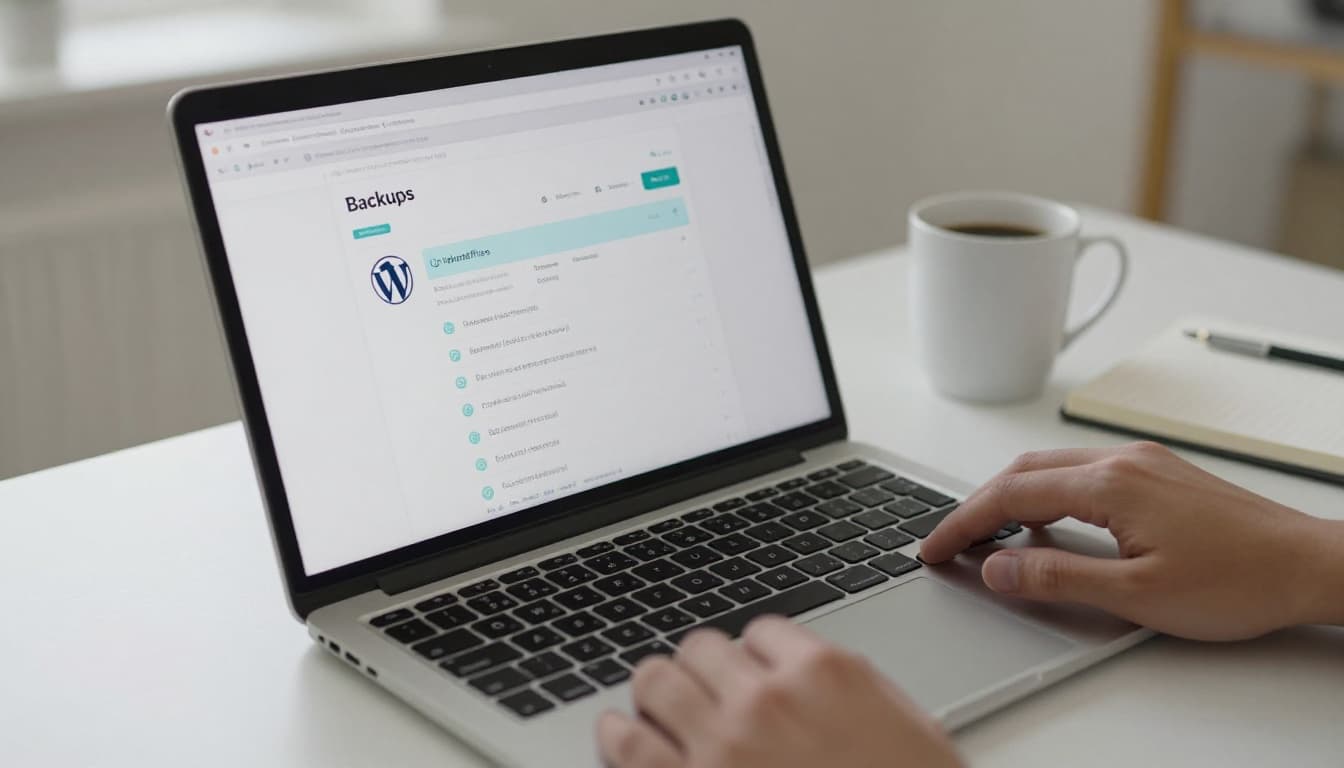 Backing up before edits in WordPress
Small prep saves big headaches. A typo is easy to fix, but a layout glitch can spread across pages. Take two minutes now, and you’ll edit faster later because you won’t second-guess every click.
If you can’t undo it, don’t change it yet. Make sure you have a rollback plan first. If not having a host like Htech-Solutions.com that backs up your site nightly is a good choice!
Back up your site and know how to undo changes
First, confirm you have backups through your host, or use a backup plugin like UpdraftPlus. Next, learn your “escape hatches.” In the Block Editor, Undo/Redo handles quick mistakes. For bigger changes, open the post or page Revisions to restore an earlier version.
Planning a major redesign? If your host offers a staging site, test there first. It’s like practicing on a copy of your house before repainting the real one.
Use the right account and update basics first
Use the right role for the job: Admin controls everything, while Editor can publish and manage content. Before big edits, update WordPress, your theme, and plugins, but don’t do it five minutes before a launch.
If you use a caching plugin, disable caching while you check your changes. Then turn it back on after everything looks right.
Make Common Edits in the WordPress Editor (Pages, Posts, and Menus)
Most day-to-day WordPress editing happens in Pages and Posts. Open the page, click where you want to change something, and work one block at a time. If you use a page builder, the same ideas apply, but controls often sit in a side panel instead of the block toolbar.
Edit content with blocks, and keep formatting clean
Each piece of content is a block (Paragraph, Heading, List, Image). Use the correct block for the job, especially for headings. Pick H2 for main sections and H3 for sub-sections, so your page stays readable and SEO-friendly.
Copying text from Google Docs or Word? Paste as plain text first, then style it in WordPress. This avoids weird fonts and spacing. Also, if you reuse the same call-to-action often, save it as a reusable block or pattern.
Update images, links, and buttons the safe way
To replace an image, use the Replace option instead of deleting and re-adding. Add clear alt text, and resize by adjusting dimensions, not by stretching corners.
For links, open external sites in a new tab, but keep internal links in the same tab. When editing buttons, check the mobile preview so the button text doesn’t wrap awkwardly. Finally, hit Preview, then Update.
Change the Look of Your Site With Themes and the Site Editor
Editing a page changes one page. Editing your theme changes the whole site. That’s why design edits deserve extra care.
If you’re on a block theme, go to Appearance > Editor to use the Site Editor. If you’re on a classic theme, you’ll usually use the Customizer for global settings.
Edit headers, footers, and global styles without guessing
In the Site Editor, templates control the overall layout of a page type. Template parts are shared sections like the header and footer. Global Styles let you set fonts and colors once, then apply them everywhere.
Avoid editing theme files unless you know what you’re doing. If you must change code, use a child theme so updates don’t overwrite your work.
Conclusion
Editing a WordPress site gets easier when you stick to a repeatable routine: back up, preview, update, then check mobile and clear cache. Start with one small, low-risk edit, then move to bigger changes once you trust your process. Most importantly, keep a quick change log in your notes app so you remember what you touched, and why. That one habit saves hours later.